Wednesday, March 30, 2011

Google Docs for Faculty

Google Docs could drasticaly increase the effeciency of our education system. We recently added our district's entire faculty body to Google Apps for Edu. Students will be added to the system next school year.

Here are a few ideas to jump start your motivation to learn & use these tools.


Do you have more ideas? Please share by leaving a comment.

Friday, March 25, 2011

Playtime Theatre...

I received a tweet from the makers of Playtime Theatre last night.  I checked out their YouTube videos and I have to say I'm pretty impressed!

The app allows the user to create a fairy tale puppet show right on the iPad.  Check it out.


Thursday, March 24, 2011

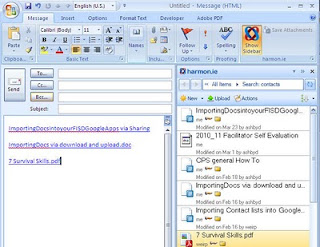
Harmon.ie: Google docs in Outlook

If you are a Google docs user, Harmon.ie is a sweet little addon that you can install on your computer if you use Outlook. It places all of your Google docs in a sidebar. You can then 'attach' any of your Google docs via drag and drop. This places a link in the email instead of the actual document. Saving valuable storage space in your email account.


Give it a shot, it's a big time and space saver.

Tuesday, March 22, 2011

Twitter Tuesday...

Finally, today is one of the first days this school year that I don't have any pressing appointments or things to prepare for.

Therefore, I have declared today "Twitter Tuesday." Stay tuned to my tweets today for some of my best findings on the web for Educational technology.


Monday, March 21, 2011

Using Google Apps 4 Digital Storytelling

I attended this webinar on using Google Apps for digital storytelling. If you are using Google apps, especially with students, this is worth the time.


My Notes:
  • Teacher creates Google site with all resources, custom image/sound searches, tutorials, boundaries, info about creative common licensing, and examples of other projects
  • Storyboards collaborated via google docs. Students use teacher-made template.
  • Google custom search enabled the teachers to help students narrow searches to the websites approved by the teacher
  • Use Google sites as wiki to post videos, reflect on stories, add comments/suggestions, for team/peer review.
  • All Google files are shared with the team = no excuses for team when one student is absent.
  • Use of Aviary (Google Marketplace) for audio editing. Aviary files are saved directly into google docs.

Friday, March 11, 2011

Japan's Earthquake & Tsunami videos

Here are some of the most amazing videos I have found of this disaster in japan.


I'll let them talk for themselves.


Thursday, March 10, 2011

Speaking Image

Speaking Image is my new favorite Web 2.0 tool.

Here are the basics of what it does:
  • Upload any image (with screenshot tools anything can become an image.)
  • Label items in the image
  • Embed content on the image (popup bubbles w/images, links to pages, wikis, videos, or just text)
Your image now becomes an interactive lesson or presentation.

Account's are free & require an email address. (account is not verified via email, which is nice for students without email).

Here are some ideas for teachers:
  • Sentence structures w/grammar explanations
  • Interactive tours: w/ maps, art, diagrams etc.
  • School tours
  • Library tours

Below is an example of sentence diagramming.

Here is a great example of vocabulary practice.

Friday, March 4, 2011

Google spreadsheets auto fill & lookup

Google docs has a couple hidden features that are really cool.

Auto fill

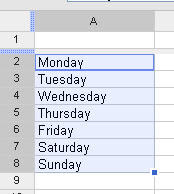
Google spreadsheets can predict patterns and complete them for you.
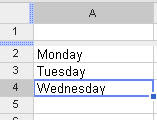
For example; if I type into one column the following words:
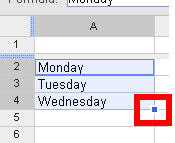
1.Type words 2. Select cells 3. Hold alt key & drag handle down to auto complete the pattern.


Google Lookup:

Google can lookup information on the web and bring into your spreadsheet.
In the example below I used the auto fill to enter my states into the column A. Then I entered the following formulas: =GoogleLookup("entity", "attribute")


Repeat steps for autofill (ctrl + click & drag)


The end result is a spreadsheet full of data that would've taken me an hour or so to lookup and transfer into my spreadsheet.

Give it a try and pass on any other tricks that you find in Google docs.

Thursday, March 3, 2011

Interactive Library displays w/ QR codes...

QR codes are everywhere.

Every Library uses posters, book displays, etc, to advertise & promote various books that are in the library. These displays are wonderful!... but what if you could add digital media or interactivity to the display?
Enter QR codes. These codes, that are showing up all over the place, can be the little tool that makes your book display into an attraction. QR codes are like visual hyperlinks that can take most mobile devices with a camera & an internet connection to any web address, text file, or phone number.

Here's how:
1. The Librarian finds or creates:
  • A blog post inviting students to leave comments, discussions, or reviews about a book.
  • YouTube book trailer about a book
  • Amazon or Barnes & Noble reviews
  • The Author's website/blog
2. The librarian generates the QR code that will take students to the site.

3. The librarian builds the display with an image of the QR code somewhere in the mix.

4. Students become active participants in a community of readers.

It may require the librarian to explain how it works to a few key students. But with a little encouragement and word of mouth it could become an attraction in your library.

How we came up with idea.
On Tuesday I blogged about an Interactive Story Project the other day that a GT ILA teacherand I came up with. Then I read about a word wall that a teacher had created with QR codes to help her students learn vocabulary. Today, while brainstorming with my librarian(you can see her blog here) we came up with this great idea for using QR codes in the library. In short...Collaboration!

Wednesday, March 2, 2011

Add text to iPod audio files...

A great little hidden feature with almost any iPod device is the ability to add any text to an audio file.

Essentially this allows anyone to add text that can be displayed while listening to the audio file it is attached to.

Implications for teachers:

Fill in the blank - The text that you enter could omit words or sentences and be replaced with _____.

Vocabulary help - When listening to any audio, students could scroll through key vocabulary and definitions.

Interpretation - Foreign language teachers could have a translation of the audio in text, so the student listens in one language and reads the translation in their native language.


How?

It's easy to get the text into the audio file and onto the iPod. Here's how:

Entering lyrics
  1. In iTunes 5 or later, select a favorite song.
  2. From the File menu, choose Get Info.
  3. Click Lyrics, then enter the words to the song in the text box.
  4. Click OK when finished.
  5. Copy the song to iPod.

Viewing lyrics

If you've entered song lyrics, you can view them at any time in iTunes 5 or later. Just select the song, Get Info for the song, and then click Lyrics. If you want to view them on iPod, do this:

  1. On iPod, start playing any song to which you've added lyrics.
  2. Press the Center button repeatedly. The number of times depends on if you have artwork or not. Here's the order of things when you press the Center button:
    Play status > Scrubber > Album Art > Lyrics/Description > Rating
    If you don't have Album Art or Lyrics, then you'll just see the Rating
    Play status > Scrubber > Rating

Lyrics should display correctly in most languages. If they do not, try removing any special characters in the Lyrics pane in iTunes, copy the song back to iPod, and try again.

Products Affected

iPod, iPhone, iPod mini, iPod touch, iPod nano, iTunes

Additional Information

Some types of files such as WAV and QuickTime files don't support lyrics, though you can convert WAV and QuickTime files into a format that would allow you to add lyrics such as AAC or MP3.