Wednesday, March 31, 2010

Lit2Go

Lit to Go: An online service of Florida's Educational Technology Clearinghouse

I heard about this through a webinar that I attended a few weeks ago. Lit2Go is a project by the University of South Florida. They are reading/recording books in the public domain and posting them to their website and iTunesU for public use. I counted over 200 books, & they are adding more all the time.

There are 2 ways to get the audio files:
  1. Search the iTunes store for "Lit2Go"
  2. Go to the USF website
Just to name a few...

Monday, March 29, 2010

iPod Touch as Language Lab

The other day I found these iPod touch mics on Amazon.com for $.50 (+3.50/shipping...don't get me started.) I wanted to try one out and see if I could find an audio app to go along with these so that we could turn our set of iPods into a Language/audio Lab. Language Labs are extremely useful and crazy expensive ($70,000+). So I figured it was worth a shot to find an alternative.


Then I tried it out. The sound is surprisingly clear.


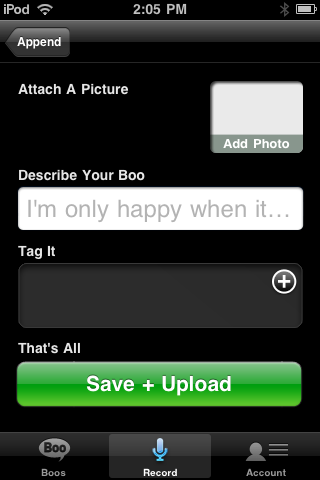
After some searching for a good app I stumbled across Audioboo. This a free app that let's you record an audio file they call a 'boo.' Then you can publish it to their website audioboo.fm.


To use it as a Language/audio Lab:
  • Go to Audioboo.fm
  • Create a free account
  • Download the app onto each iPod
  • Enter audioboo.fm account credentials to link to your account
  • Record the boo
  • Publish the boo
  • Play all your boos from the website, embed them in a blog, etc

Integration ideas:
  • Giving an interview
  • Ordering at a restaurant,drive through, etc
  • Introducing someone
  • Describing person, place, or thing
  • Telling a story,
  • "Interrogation Scene" using the past tense.
  • Giving directions (over the phone)
  • Poetry reading
Have other ideas...Share them as a comment below.

Wednesday, March 17, 2010

Book Trailers

As a kid in school, just a few years ago, I can remember doing book report after book report. The books we had to read weren't all that interesting and the reports were even less so.

Lately it seems to me that some really good books for kids have come out. Great plots, interesting characters, and just all around good stories. In fact, many of these books have such great stories that they seem to turn into movies overnight.

As a result of these read-worthy books and the advancement of technology, our students have started started to create book trailers instead of book reports. We don't want them to give the story away, but rather give the viewer enough information and curiosity to make them want to read the book.

Check out the following trailer created by one of our students using Microsoft Photostory 3:


Here is what you need:
Devices - Digital Camera (cell phone, pocket camcorder, etc), a computer, (microphone optional)
Programs - Photostory 3, Animoto, Garage Band, iMovie, Windows MovieMaker, PowerPoint/Keynote

Important Teaching Points when creating book trailers:
  • Create a storyboard as a rough draft
  • Mood & music are very important to a trailer
  • Time vs. Attention - think about movie trailers and t.v. commercials
  • Text cannot be read easily when it is overtop of a picture
  • PPT/Keynote can be used to create jpegs of text (text slides)
  • Copyright & Permissions - Use pictures/music in Public Domain and cite your sources (see comments below for listing of recommended websites)
  • Do not claim images or music as your own if you did not create them

Thursday, March 11, 2010

1 line biography project

Students/classes collaborate to gather information on a subject they are studying. In Taboo fashion, students can't repeat any info that has already been given.

The beginning of the biographies are usually facts that come out of their textbook or the usual facts that everybody knows, but as it grows the entries begin to come from different sources and are lesser known facts. If you do this with multiple classes (lots of students), then you are going to have a pretty in-depth biography when it’s finished.

The steps & rules are simple:

  • Create a wiki (Google doc, blog, etc) with one page for each person or subject for which the class will study.
  • Each student contributes one line of info while also citing their source.
  • Once a piece of information has been posted it cannot be repeated. Just like Taboo, students must avoid repeating facts/info.

Once the project is completed your class will have a rich resource that could be used as a study guide or an information source for another project/report.

Subject specific lesson ideas:

English - Author's biographical info.; key points in plot development; examples of a writing style (X) from book/author;

Social Studies - Life of historical figure; war/battle facts; possible causes of the Great Depression;

Science - facts about body sytsems; Biomes

Health/PE - Habits & tendencies that contribute to a sedentary life-style; rules of golf, tennis, etc; list of sports/activities that are life-long;

Foreign language - phrases used in a restraunt (scenario A, B, C);

Have more ideas? Please share by leaving a comment below.

Wednesday, March 3, 2010

USTREAM - taking your class to your parents...

Using a USTREAM channel could become an amazing tool for sharing the many wonderful things happening in your class with parents and families. Including parents in Education, more often than not, has very positive results.

Below is an idea that came about with an
ELA teacher at one of my schools


Case #1 - Students debating each other
  1. Ask parents to vote on a list of topics for students to debate. (I recommend using a Google form)
  2. Set up a uStream.tv channel
  3. Password protect your channel
  4. Place a link to your channel on your blog/wiki/website
  5. Advertise your bradcasting
  6. Send password home to parents (email, letter, etc)

When you are ready to debate:

  1. Turn your uStream channel on
  2. Begin your broadcast
  3. Record your broadcast
  4. Post your recording to your channel

Have other ideas? Please share by leaving a comment.

Sewing machine, pocket camcorder, & a digital photo frame

This week I had a Life Skills teacher come up with a great idea for her sewing unit lessons. She checked out a pocket camcorder and created 4 or 5 video tutorials for the sewing tasks the students were assigned. Then we loaded the videos onto a few digital photo frames. We placed one frame on each sewing table (2-3 sewing machines/table). Throughout each phase of the sewing project, the students could then go back to the digital photo frame and watch a quick tutorial on how to perform the task they were working on. This enabled the students to help themselves, as well as freeing the teacher up to serve more students.

Without digital photo frames the teacher may not have been able to assist all the students in her classroom; we would've had to take laptops out of our mobile lab, leaving other classes short a computer or two.

For $50-60 a piece, these frames were a good addition to our school.


Tuesday, March 2, 2010

byki flashcards for language learners

Yesterday, I had one of my co-workers ask me if I had seen byki? I hadn't heard of it before, but I was glad she introduced it to me. I really think it is very useful.

Byki is a flashcard program for learning languages. Here are some of the features that I love:
  • 3 step flashcards:
    • Step 1 - see (target language) & English, listen to the vocab in TL
    • Step 2 - see/hear TL; provide English
    • Step 3 - see English; provide TL; listen to TL
  • There are a dozen or so lists/lessons preloaded
  • You can upload your own vocabulary lists (see byki help menu for instructions)
  • Toggle sound for slow playback.
  • Progress tracking.
  • Vocabulary list sharing.
Below is a quick video preview of what it looks like and how it works.